Still Editing Configs by Hand? CC-Switch Makes You 60x Faster (5.9k Stars)
1/25/2026
Preface: never heard of CC-Switch? You are already behind.
The harsh reality: when your teammates switch API configs in 5 seconds, you are still editing JSON by hand and wasting 3-5 minutes. When they have multi-device sync, you are copying configs via USB. When they manage all AI CLIs with CC-Switch, you do not even know the name.
Wake up. In the AI coding era, efficiency is survival. Still managing Claude Code, Codex, and Gemini configs by hand? You are being left behind.
Which type of developer are you?
Type A: the manual editor
You run out of quota on provider A and switch to provider B. Every switch means:
- open the config file
- edit API base URL and key
- double check JSON formatting
- save and restart
- pray nothing breaks
That is 3-5 minutes per switch. Do it five times a day and half an hour is gone.
Worse, manual edits are error-prone. One extra space in an API key or a typo in a URL and the tool fails. Frustrating.
Type B: the CC-Switch user
- one-click config switching: 5 seconds
- multi-device sync: set once, use everywhere
- visual UI: no more raw JSON
- MCP server management: toggle to enable
- API speed tests: auto detect fastest endpoint
The gap: Type B is about 60x more efficient.
That is why CC-Switch matters. It turns Type A into Type B instantly.
What is CC-Switch?
CC-Switch is a cross-platform desktop app built to manage API configs for Claude Code, Codex, and Gemini CLI.
Think of it as a “config butler.” Instead of changing outfits one piece at a time, you hang 10 outfits in a smart closet and switch with a click.
Even better: it supports cloud sync via services like Jianguoyun, OneDrive, or Dropbox.
- office and home machines stay in sync
- Windows and WSL can share configs
- no more lost or inconsistent settings
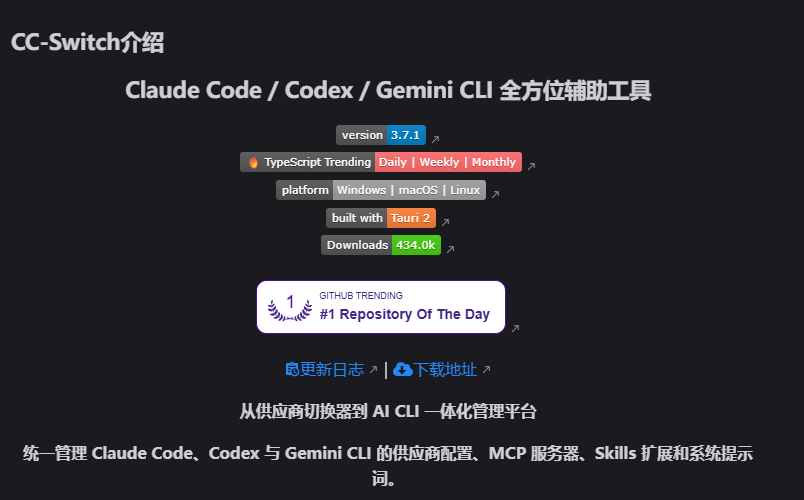
Core features
CC-Switch has 5.9k stars on GitHub. It evolved from a simple provider switcher into a full AI CLI management platform.
Main capabilities
- One-click switching: from 5 minutes to 5 seconds, ~60x faster
- Cloud sync (key feature): sync via Jianguoyun/OneDrive/Dropbox
- Multi-tool support: Claude Code, Codex, Gemini CLI
- MCP server management: stdio/HTTP/SSE support
- API speed tests: auto find fastest provider
- Import/export configs: share with teams, auto backup last 10 versions
- Two-layer data model: SQLite + JSON for fast sync
- Cross-platform: Windows, macOS, Linux (incl. WSL)
Tech stack: why it feels fast
Understanding the stack helps explain the performance.
Frontend
- Framework: React 18
- Language: TypeScript
- Bundler: Vite
- Styling: TailwindCSS 4
- UI: shadcn/ui
Backend
- Framework: Tauri 2.8
- Language: Rust
- Database: SQLite
- Async runtime: tokio
Architecture: dual-layer design
CC-Switch uses a two-layer model:
- SQLite: syncable data (providers, MCP, skills)
- JSON: device-level settings (UI, window state)
With atomic writes and auto backups, it stays safe and fast.
Efficiency comparison
| Action | Manual | CC-Switch | Gain |
|---|---|---|---|
| Switch API config | 3-5 min | 5 sec | 60x |
| Error rate | 30% | 0% | down to 0 |
| Multi-device sync | manual import/export | auto cloud sync | frictionless |
| MCP toggle | edit config file | toggle switch | instant |
Installation: step by step
Windows
Step 1: Go to GitHub Releases
https://github.com/farion1231/cc-switch/releases
Step 2: Download the latest build
- MSI: CC-Switch-v3.9.0-Windows.msi (recommended)
- Portable: CC-Switch-v3.9.0-Windows-Portable.zip
Step 3: Install MSI or unzip portable and run
macOS
Use Homebrew:
brew tap farion1231/ccswitch
brew install --cask cc-switch
Note: macOS may show “developer not verified” on first launch.
Fix:
- System Settings -> Privacy & Security
- Find “Open anyway”
- Click “Open”
Linux/WSL
Example for WSL Ubuntu:
wget https://github.com/farion1231/cc-switch/releases/download/v3.9.0/CC-Switch-v3.9.0-Linux.deb
cp CC-Switch-v3.9.0-Linux.deb /root
cd /root
sudo dpkg -i CC-Switch-v3.9.0-Linux.deb
cc-switch --version
WSL launch fix (reduce graphics warnings):
#!/bin/bash
# cc-switch launch script to reduce graphics warnings

export MESA_LOADER_DRIVER_OVERRIDE=""
export EGL_PLATFORM=x11
export LIBGL_ALWAYS_SOFTWARE=1
export EGL_LOG_LEVEL=fatal

export GDK_BACKEND=x11
export DISPLAY=${DISPLAY:-:0}

echo "Launching cc-switch..."
exec cc-switch "$@"
Make it executable:
chmod +x cc-switch-fix.sh
Real usage: configs for 3 AI CLIs
Claude Code
Step 1: In CC-Switch, choose the “Claude” group.

Step 2: Pick a provider template (e.g. Z.ai GLM).
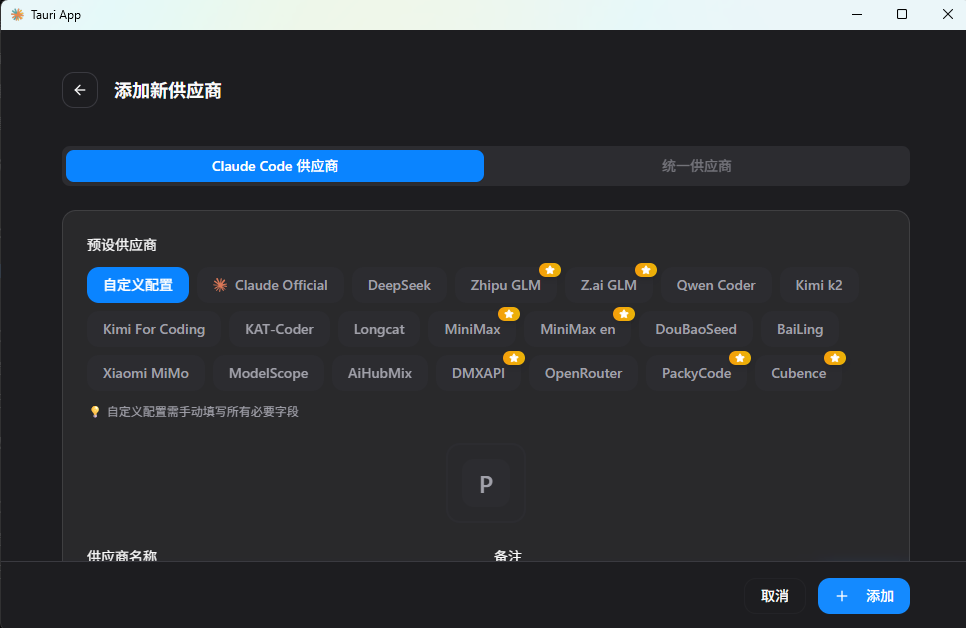
Step 3: Fill in the config
- API key from provider
- API BaseURL (if custom)
- Default model (e.g. GLM-4.7)
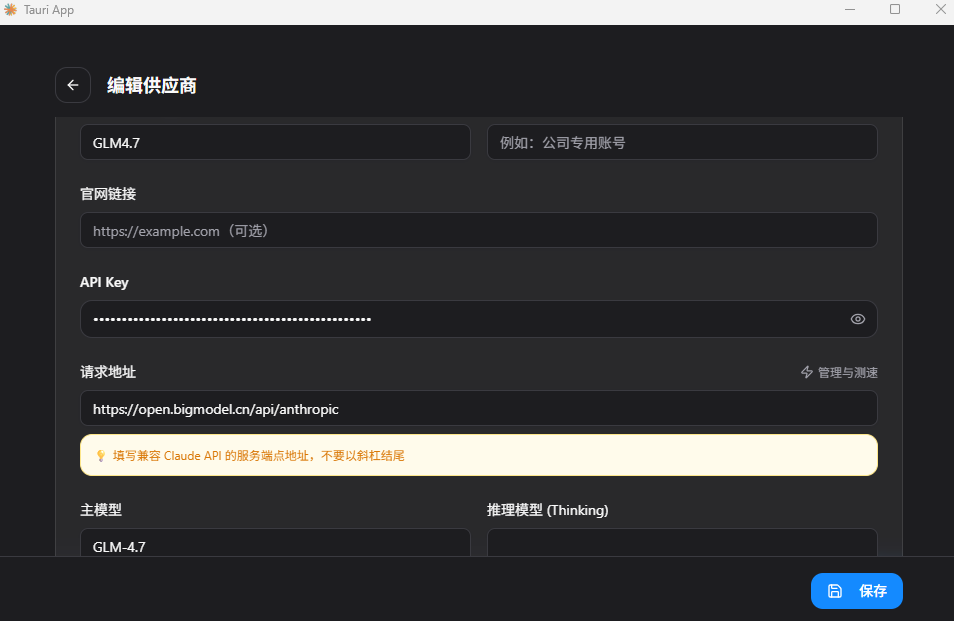
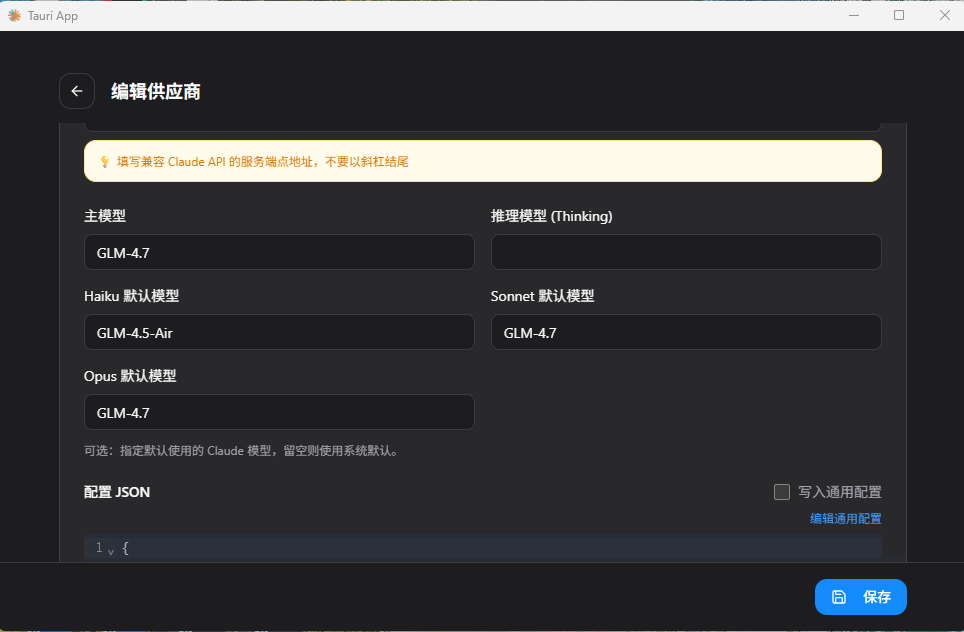
Step 4: Click “Add” and it syncs to cloud folder
Step 5: Click “Enable” and see “In Use”
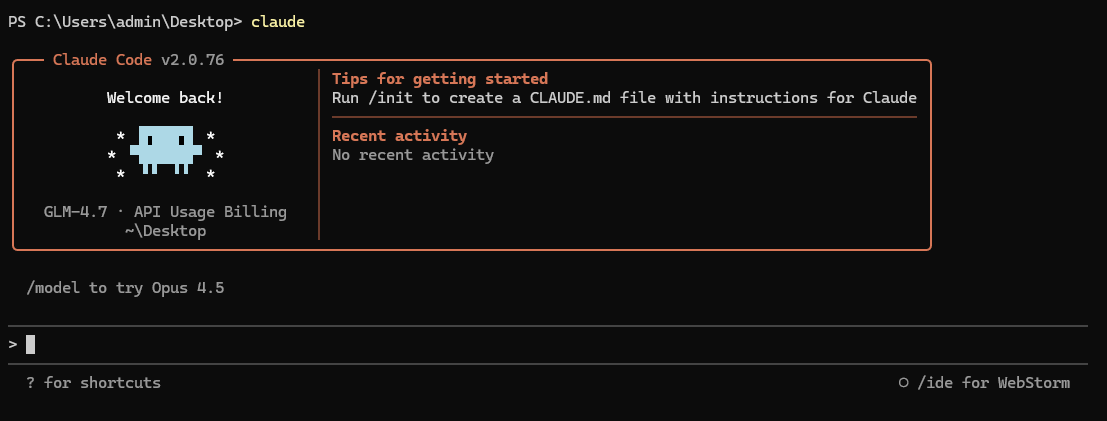
Step 6: Run claude in terminal to verify
Codex
Similar steps, with one key note:
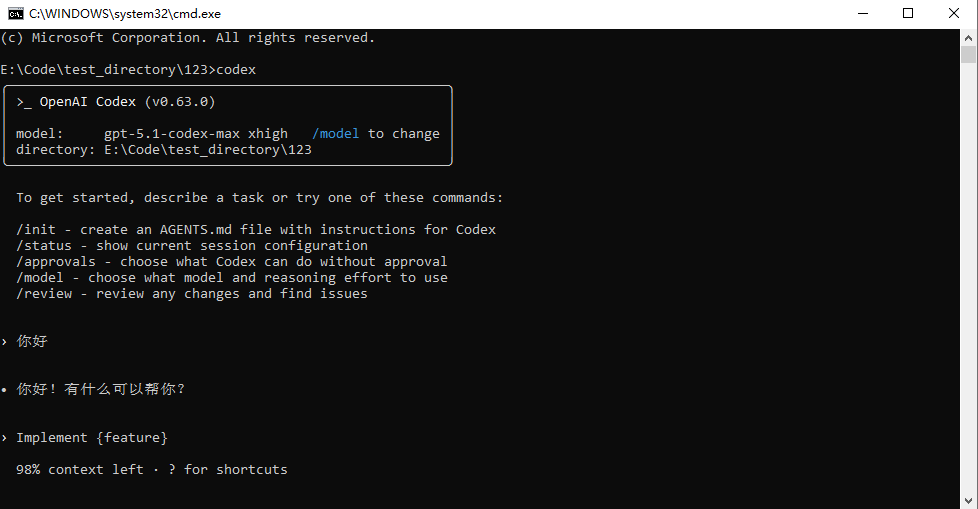
Important: if you are a Codex subscription user, get the API key from the Codex console.

Enable and verify with codex.
Gemini
Step 1: Choose “Gemini” group.

Step 2: Select a Gemini provider template.
Step 3: Enter Gemini API key from your provider.

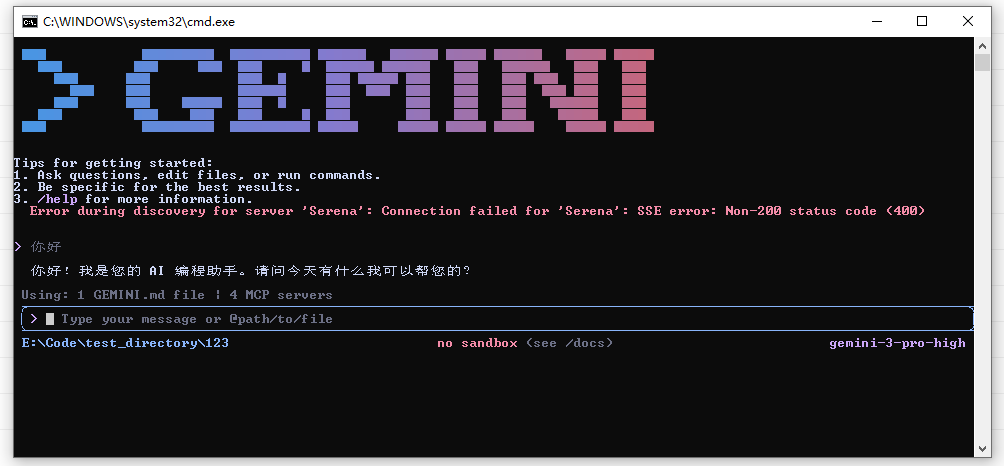
Step 4: Enable and verify with gemini.
Advanced: MCP server management
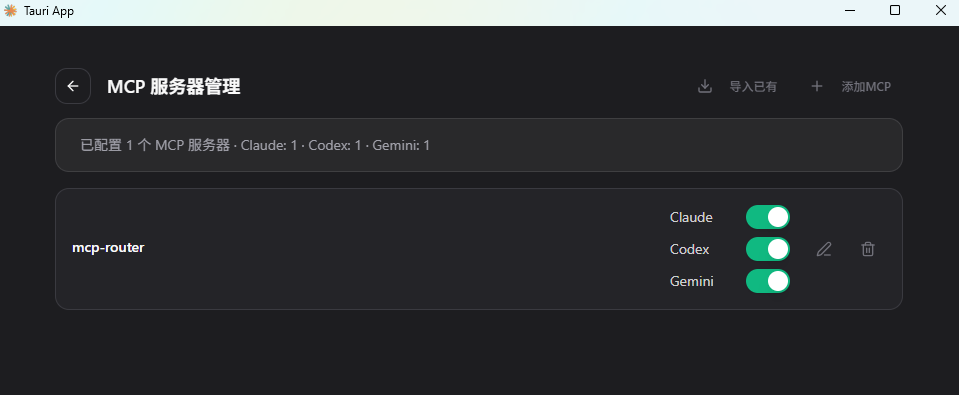
If you use MCP servers, CC-Switch can manage them centrally.
Click the “MCP” tab:

Add MCP servers
Option 1: manual
- Click “Add MCP Server”
- Choose type (stdio/HTTP/SSE)
- Fill server info
- Save
Option 2: template (easier)
- Click “From Template”
- Choose built-in template (e.g. mcp-fetch)
- Auto fill
- Save
Enable/disable MCP servers
Toggle the switch next to each server. It takes effect immediately.
Examples:
- Project A: github + filesystem
- Project B: postgres + memory
- Docs writing: brave-search + filesystem
Skills management
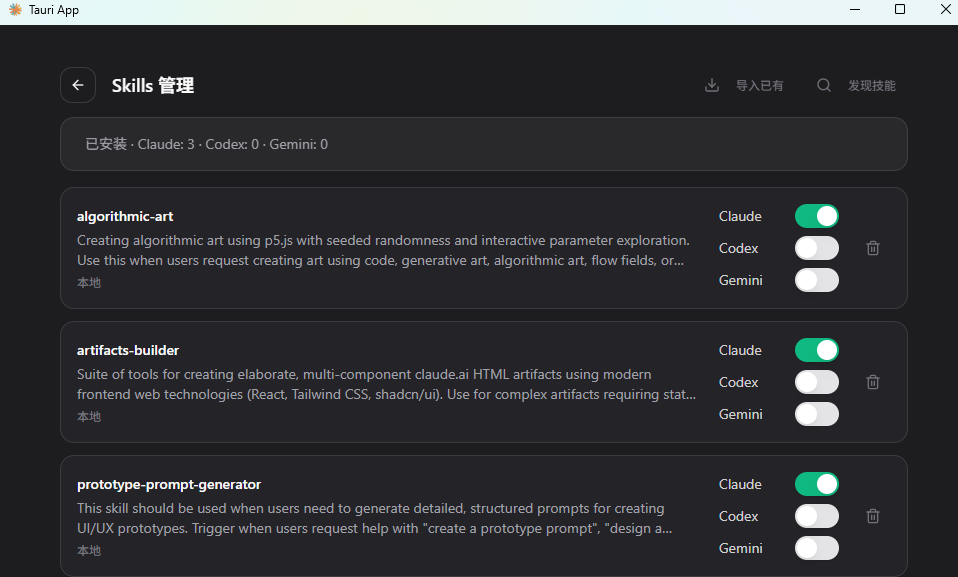
New versions support Skills management.
Install from the default repo or add your own Skills repository.

API speed tests
Not sure which provider is fastest? CC-Switch has built-in speed tests.
Click “Test Speed” in the provider list:
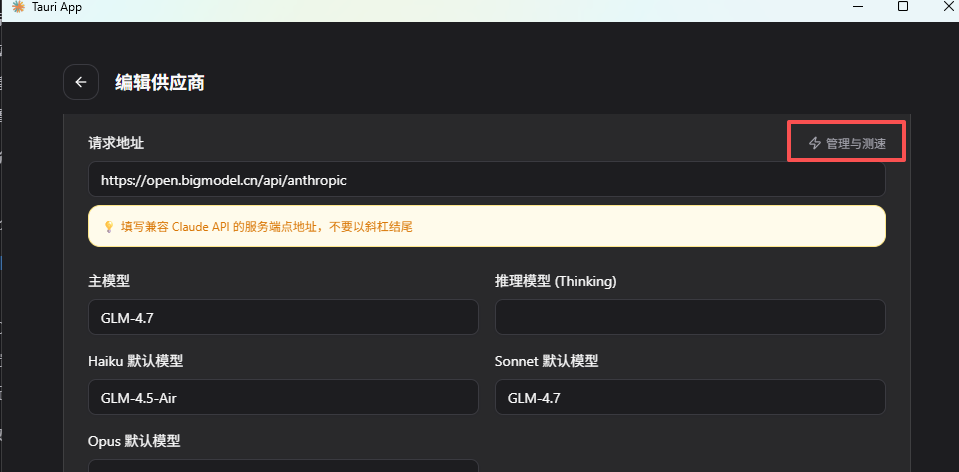
You get:
- response time (ms)
- connection quality
- availability
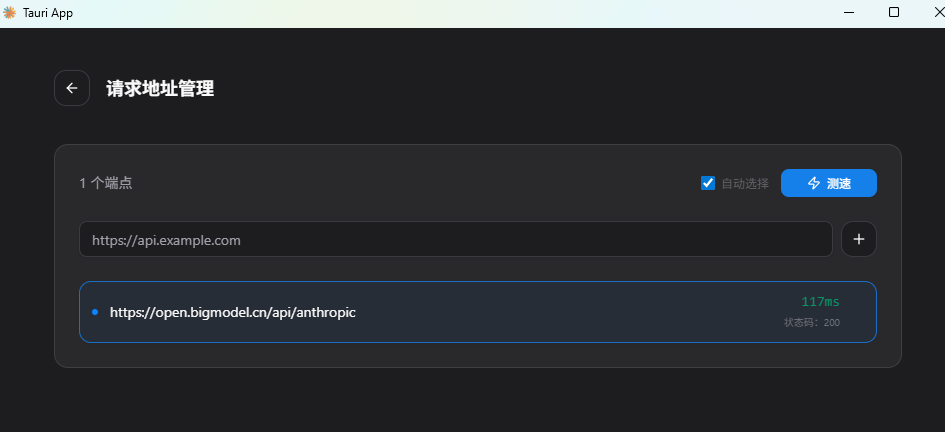
Choose the fastest provider. In practice, mainland China users often see 3-5x faster results on domestic endpoints.
Shortcut tips
Duplicate providers quickly
If you want a similar config:
- Click “Duplicate”
- It clones all fields
- Change only what is different
- Save
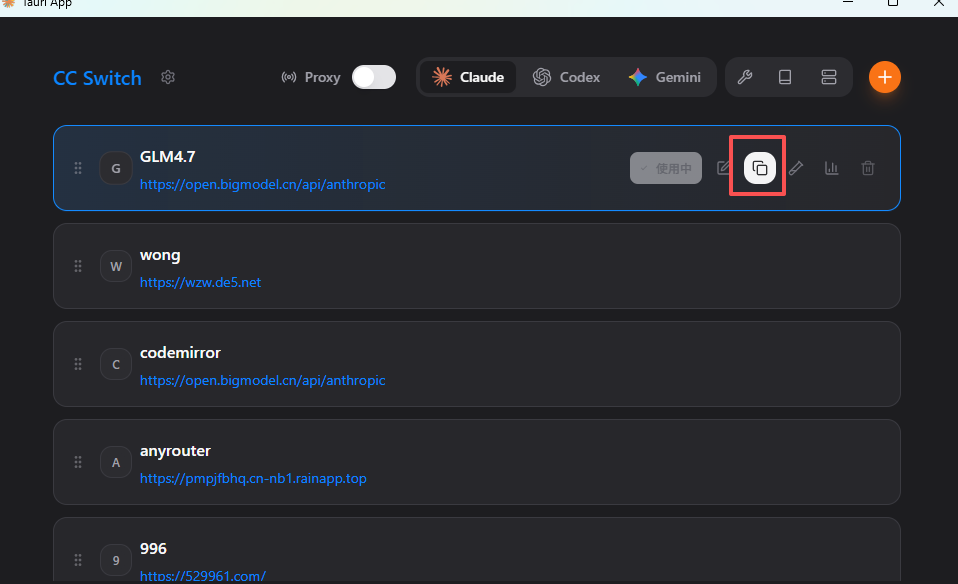
This saves about 80% of manual input time.
System tray quick switch
Even better: right click the tray icon (Windows) or menu bar icon (macOS) and choose a provider directly.
Instant switch. No need to open the main window.
Conclusion: without CC-Switch, you are falling behind
We covered the full CC-Switch workflow for managing AI CLI configs.
Final warning
If you read this and still do not plan to try CC-Switch:
You might be the one being left behind.
When competitors switch in 5 seconds, you waste 3-5 minutes. When others sync across devices, you still copy files. When they manage all AI tools with CC-Switch, you still edit JSON by hand.
This is not just efficiency. It is survival.
In the AI era, tools are weapons. If you are using old weapons, you cannot compete with modern ones.
That is all for today. If this helped, please like, save, and share. See you next time.
欢迎关注公众号 FishTech Notes,一块交流使用心得!