Deploy PostgreSQL with One Command! Containerization Boosts Database Migration Efficiency by 10x
2/24/2026
To be honest, I’ve always been a loyal MySQL user.
From the beginning of my career until now, MySQL has accompanied me through countless projects. I know its quirks, I’ve stepped on its pitfalls, and I’ve written countless SQL statements. Switch databases? Never crossed my mind.
But in the last two years, the winds have changed.
PostgreSQL’s popularity in the open-source community has been skyrocketing. Stack Overflow surveys show it has been rated “most loved database” by developers for consecutive years.
In China’s domestic technology wave, a large number of domestic databases are based on PostgreSQL secondary development - Huawei openGauss, Alibaba PolarDB, Tencent TBase… Why did they all choose it? Because PostgreSQL’s License is the most permissive MIT-style, unlike MySQL which is strangled by Oracle.
What touched me even more is the change in the AI era. Supabase, the “open-source Firebase” valued at billions, is built on PostgreSQL; the pgvector extension enables PostgreSQL to directly store and retrieve vector data, becoming a standard for AI applications. Many AI projects even use PostgreSQL directly as a vector database, eliminating one component.
So what exactly makes PostgreSQL stronger than MySQL?
| Comparison | MySQL | PostgreSQL |
|---|---|---|
| JSON Support | Yes, but limited | Native JSONB, powerful query performance |
| Full-text Search | Basic capability | Built-in tokenization, weights, ranking |
| Extension Ecosystem | Few | Rich (PostGIS, pgvector, pg_stat_statements…) |
| Complex Queries | JOIN performance average | Smarter optimizer, stronger complex queries |
| Data Types | Basic types | Arrays, ranges, geometry, custom types |
| Open Source License | GPL (Oracle controlled) | PostgreSQL License (completely free) |
At the end of the day, MySQL is sufficient, but PostgreSQL is more “capable”.
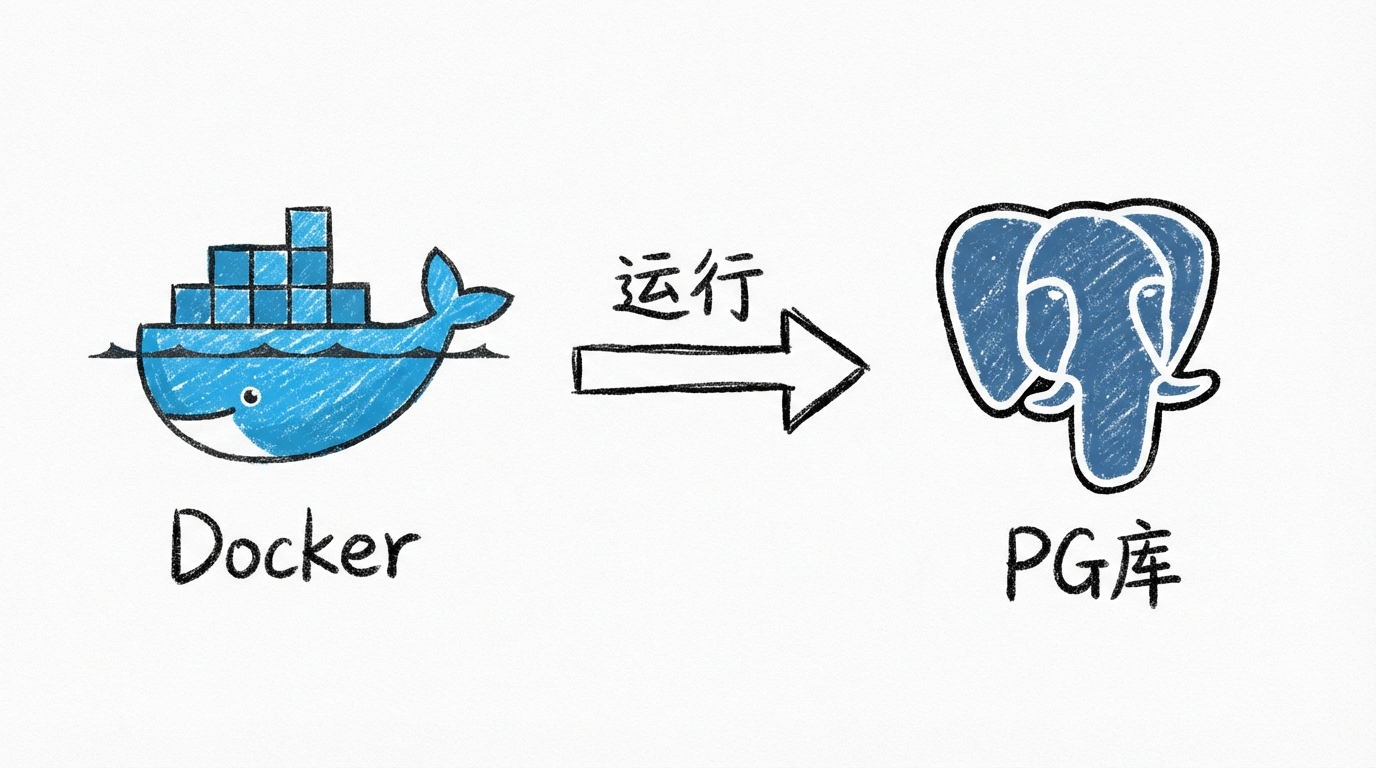
So I also started my PostgreSQL learning journey. The first step is of course to deploy an environment. Using Docker containerized deployment, clean and neat, one command to get it done.
Today I’ll share this PostgreSQL containerized deployment solution with you, from directory structure to permission settings, from startup verification to remote access, explained thoroughly in one go.
1. Recommended Directory Structure
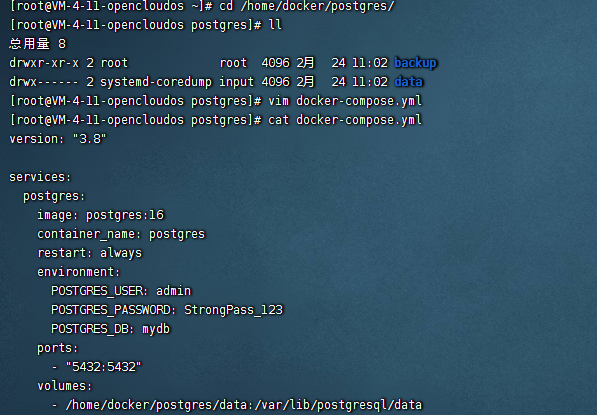
First, we need a clear directory structure. This not only facilitates management but also allows you to quickly locate problems when they occur.
/home/docker/postgres/
├── data/              # Core data directory
├── backup/            # Backup directory
└── docker-compose.yml # Orchestration file
Command to create directories:
mkdir -p /home/docker/postgres/{data,backup}
Why design it this way?
- data directory: Stores core database data, must strictly control permissions
- backup directory: Regular data backup, prevents data loss
- docker-compose.yml: Unified container configuration management, version controllable
2. Most Important: Permission Settings (Pitfall Warning)
This step 90% of people will encounter pitfalls, please take it seriously.
chown -R 999:999 /home/docker/postgres/data
chmod 700 /home/docker/postgres/data
Why 999?
PostgreSQL container runs as user UID 999 internally, the data directory must be completely controlled by it. If you don’t set this permission, the container will directly report an error at startup:
initdb: error: directory "/var/lib/postgresql/data" exists but is not empty
Meaning of permission 700:
- Only the directory owner (UID 999) has read, write, and execute permissions
- No other user can access, ensuring data security
3. Docker Compose Configuration File
Create docker-compose.yml in the /home/docker/postgres/ directory:
version: "3.8"

services:
  postgres:
    image: postgres:16
    container_name: postgres
    restart: always
    environment:
      POSTGRES_USER: admin
      POSTGRES_PASSWORD: StrongPass_123
      POSTGRES_DB: mydb
    ports:
      - "5432:5432"
    volumes:
      - /home/docker/postgres/data:/var/lib/postgresql/data
Configuration Explanation:
| Parameter | Description |
|---|---|
| image: postgres:16 | Use PostgreSQL version 16, stable and feature-rich |
| restart: always | Container automatically starts after server restart |
| POSTGRES_USER | Super admin username |
| POSTGRES_PASSWORD | Password (use stronger password in production) |
| POSTGRES_DB | Default database name to create |
| volumes | Data persistence mount |
Enterprise Production Recommendation: If data consistency is critical, use precise version tags like
postgres:16.9-bookwormto avoid glibc version compatibility issues from automatic image upgrades. Personal or test environments usingpostgres:16is completely fine.
4. Startup and Verification
Start container:
cd /home/docker/postgres
docker compose up -d
Note:
docker compose up -dwill automatically check and pull images, no need to executedocker pullseparately. If you want to pull the image in advance, you can executedocker pull postgres:16.
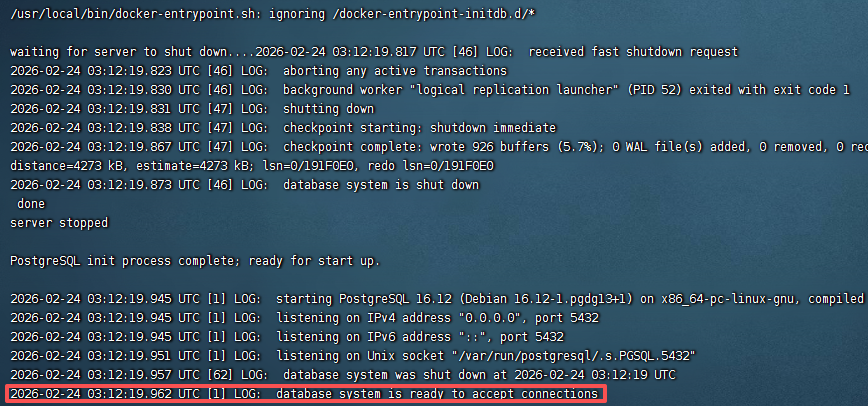
View startup logs:
docker logs -f postgres
Seeing this line means success:
database system is ready to accept connections
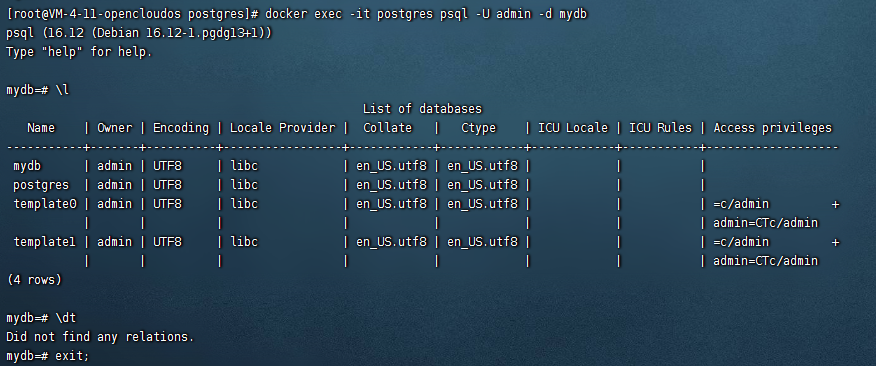
Verify database:
docker exec -it postgres psql -U admin -d mydb
After entering psql, execute the following commands:
\l    -- View all databases
\dt   -- View tables in current database
5. Remote Access Configuration (Must-Read for Cloud Servers)
If you need to connect to the database from outside (like using Navicat, DBeaver), you need to do the following configuration.
1. Modify postgresql.conf
vim /home/docker/postgres/data/postgresql.conf
Find and modify:
listen_addresses = '*'
2. Modify pg_hba.conf
vim /home/docker/postgres/data/pg_hba.conf
Add a line:
host all all 0.0.0.0/0 md5
3. Restart container
docker restart postgres
4. Open server port
Don’t forget to open port 5432 in your cloud server console.

6. Best Practice: Create Independent Business User
In production environments, never use super admin for business connections!
This is a painful lesson for many teams. The correct approach is to create an independent business user:
CREATE USER app_user WITH PASSWORD 'StrongPass123';
GRANT ALL PRIVILEGES ON DATABASE mydb TO app_user;
Why do this?
- Super admin has excessive permissions, accidental operations can lead to catastrophic consequences
- Independent users can precisely control permission scope
- Facilitates auditing and security investigation
7. Automatic Backup Script (Production Essential)
Data is a core asset, regular backup is essential. Here’s a simple and practical automatic backup script:
#!/bin/bash
# Save as /home/docker/postgres/backup.sh

BACKUP_DIR="/home/docker/postgres/backup"
DATE=$(date +%Y%m%d_%H%M%S)
CONTAINER="postgres"
DB_USER="admin"
DB_NAME="mydb"

# Create backup
docker exec $CONTAINER pg_dump -U $DB_USER -d $DB_NAME -Fc > \
  $BACKUP_DIR/backup_$DATE.dump

# Keep only last 7 days of backups
find $BACKUP_DIR -name "backup_*.dump" -mtime +7 -delete

echo "Backup completed: backup_$DATE.dump"
Set up scheduled task:
chmod +x /home/docker/postgres/backup.sh
crontab -e
Add a line (automatic backup at 2 AM daily):
0 2 * * * /home/docker/postgres/backup.sh >> /home/docker/postgres/backup.log 2>&1
Restore data:
docker exec -i postgres pg_restore -U admin -d mydb < backup_20240101_020000.dump
8. Bonus Tip: Vim Paste Without Messy Formatting
When using Vim to edit configuration files, if you’ve encountered the problem of messy formatting after pasting, this tip can help you solve it completely.
Edit Vim configuration:
vim ~/.vimrc
Add:
set pastetoggle=<F2>
Usage:
- Press
F2to enable paste mode - Paste content
- Press
F2again to disable
Simple and efficient, say goodbye to paste formatting problems forever.
9. Unified Management Recommendation
If you have multiple container services, it’s recommended to adopt the following unified directory structure:
/home/docker/
├── postgres/
│   ├── docker-compose.yml
│   ├── data/
│   └── backup/
├── redis/
│   ├── docker-compose.yml
│   └── data/
└── nginx/
    ├── docker-compose.yml
    └── conf.d/
This way each service has its own directory, configuration is clear, and migration is convenient.
Summary
The PostgreSQL containerized deployment solution shared today covers the complete process from directory planning, permission settings, configuration writing to remote access.
Key takeaways:
- Directory structure should be clear, separate data and backup
- Permission settings are key, UID 999 and chmod 700 are both essential
- In production environments, create independent business users, avoid using super admin
- Remote access requires configuring two files: postgresql.conf and pg_hba.conf
- Regular backup is essential, set up automation scripts
This solution has been verified in multiple production environments and is stable and reliable. If you’re considering containerizing your database, give this solution a try.
Welcome to follow the WeChat official account FishTech Notes to exchange usage experiences together!