Complete Fix for OpenAI Codex Login Issues in WSL
1/23/2026
Preface
Have you hit this in WSL? You install OpenAI Codex, run codex, and it hangs. It asks you to log in via browser, or throws a 403 error.
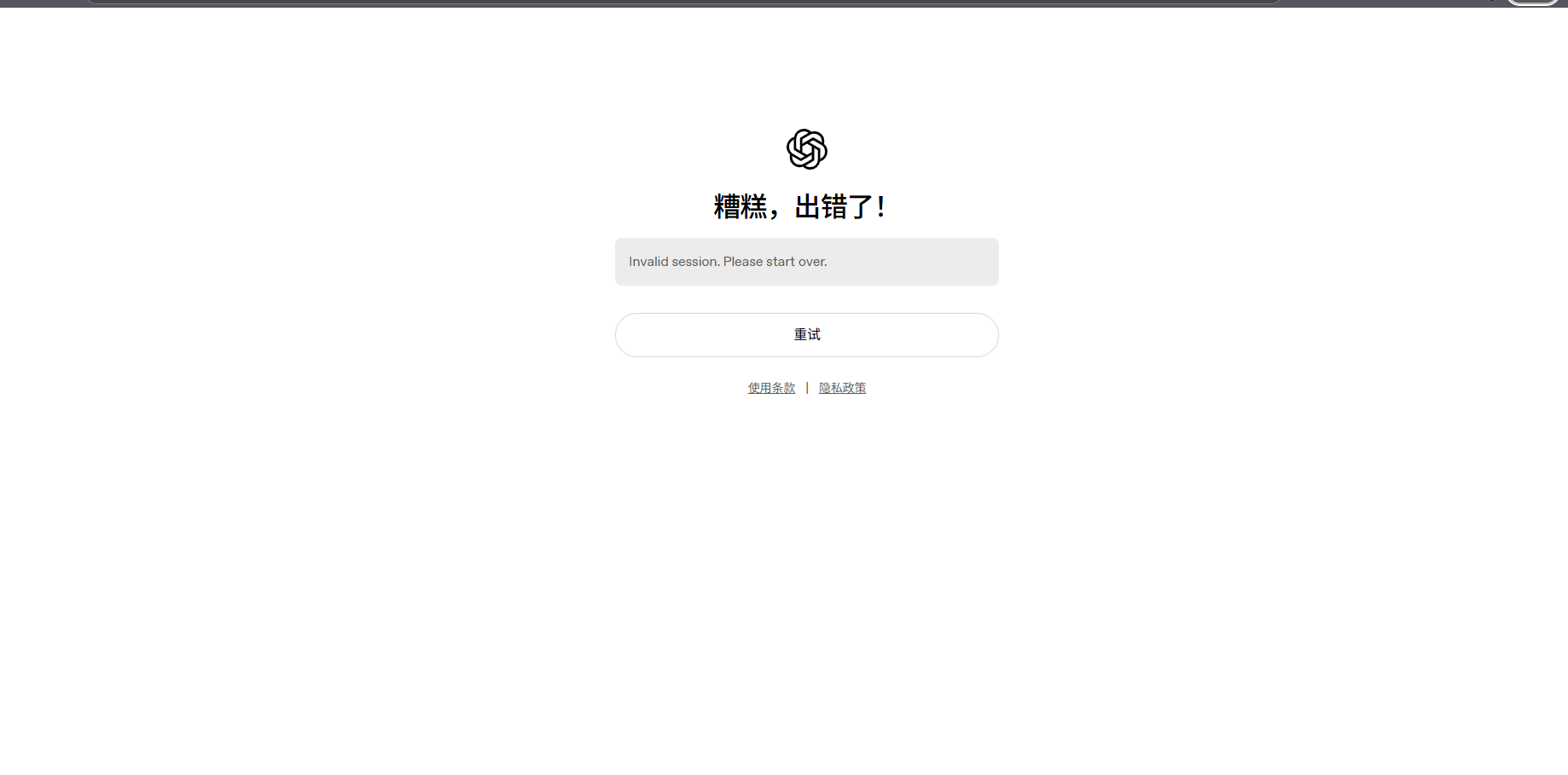
Do not panic. This guide solves it end-to-end.
Symptoms
Check if you have any of these:
Case 1: endless login loop
codex login
# browser opens and login succeeds
# back in terminal, it fails and asks to login again
Case 2: 403 Forbidden
codex whoami
# Token endpoint returned status 403: Forbidden
Case 3: browser cannot open
codex
# Error: Failed to open browser
If yes, keep reading.
Root cause: localhost isolation between WSL and Windows
WSL2 network architecture
WSL2 runs inside a lightweight VM with its own network stack:
- Windows localhost:
127.0.0.1(Windows) - WSL localhost:
127.0.0.1(WSL VM)
These are isolated from each other.
OAuth login flow failure
Codex uses OAuth 2.0:
- Run
codex loginin WSL - Codex opens a browser to
http://localhost:PORT - After login, OAuth callback returns to the same localhost
- Problem: the browser cannot callback into WSL localhost
Why Windows works
On Windows:
- full desktop environment
- browser and Codex CLI run in the same OS
- localhost callback works
In WSL:
- no native desktop
- even if you open Windows browser, localhost is a different network space
- OAuth callback fails, token is not saved
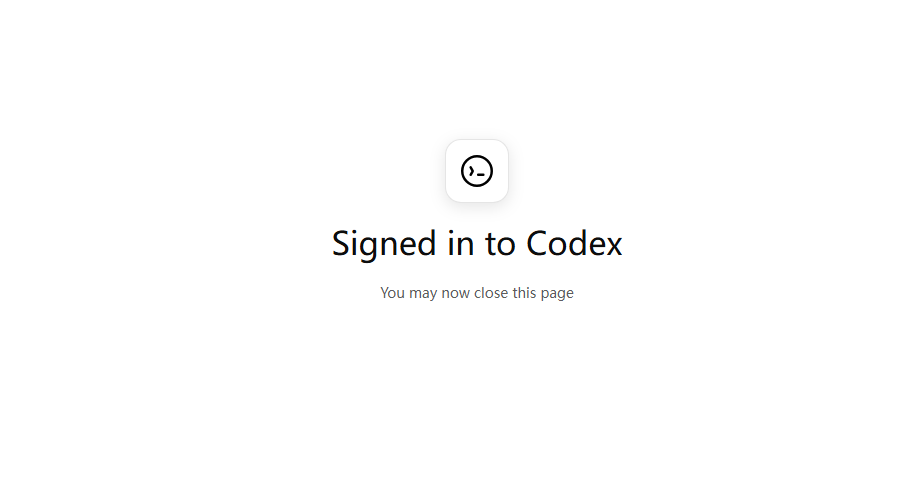
Solution: copy Windows login state into WSL
Since WSL cannot finish OAuth, do it on Windows and copy the credentials.
Why this works
- Login once, use everywhere
- No need to break WSL isolation
- Works for root users too
- Supports multiple WSL distros
Step-by-step fix
Step 1: login on Windows
In Windows PowerShell or CMD:
codex login
The browser opens. Complete the login.
Credentials are saved to:
C:\Users\<your-windows-username>\.codex
Verify:
codex whoami
If you see your user info, Windows login is done.
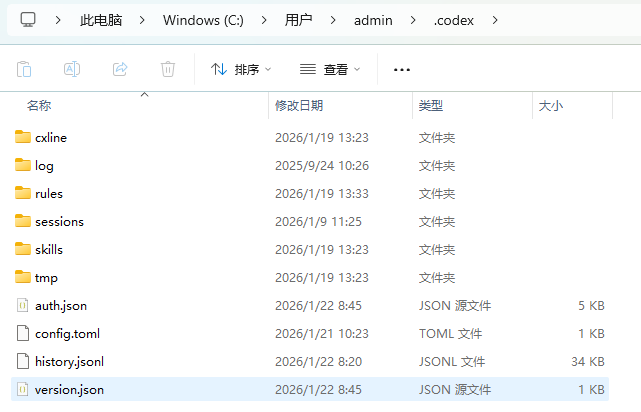
Step 2: confirm the Windows directory
In File Explorer, confirm:
C:\Users\<your-windows-username>\.codex
Inside you should see:
config.jsonsession.jsontoken(or similar)
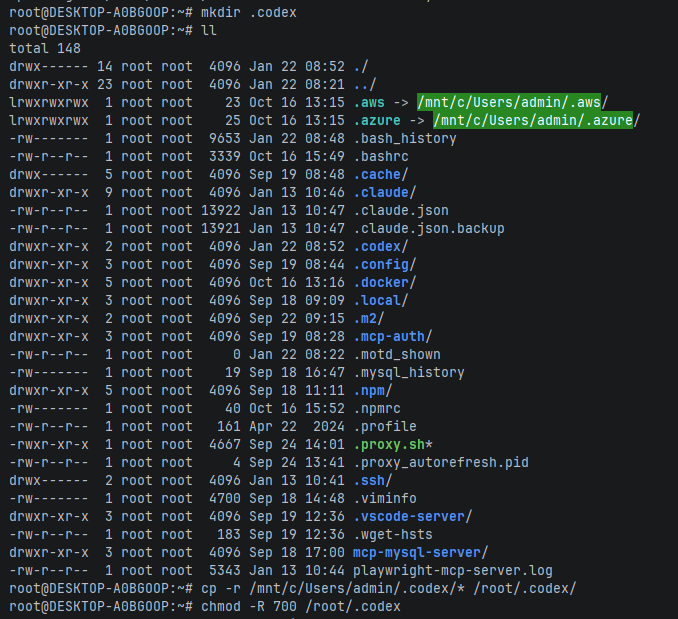
Step 3: copy credentials into WSL
In WSL terminal:
# 1) ensure codex dir exists
mkdir -p ~/.codex

# 2) copy from Windows (replace your username)
cp -r /mnt/c/Users/<your-windows-username>/.codex/* ~/.codex/

# 3) fix permissions
chmod -R 700 ~/.codex
Notes:
~expands to your home- for root it is
/root - for a normal user it is
/home/<user>
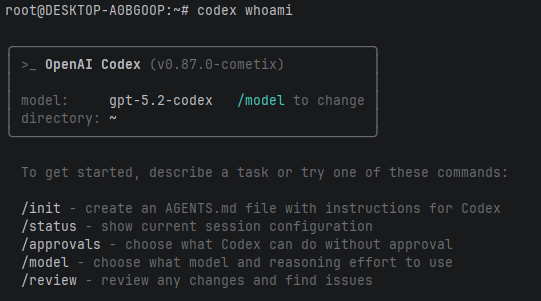
Step 4: verify
In WSL:
codex whoami
Or:
codex
Success signs:
- no browser login prompt
- no 403
- Codex CLI opens normally
Why this solution works
How it actually works
-
Codex only checks credential files
- It looks for
.codexunder your home directory - root:
/root/.codex - user:
/home/<user>/.codex
- It looks for
-
Credentials are cross-platform
- Token files are not OS-bound
- not tied to UID
- no environment validation
-
WSL can access Windows filesystem
- Windows C drive is mounted at
/mnt/c/ - you can copy files directly
- Windows C drive is mounted at
Advanced tip: symlink (optional)
If you switch between WSL and Windows often, create a symlink:
# backup existing config
[ -d ~/.codex ] && mv ~/.codex ~/.codex.bak

# create symlink
ln -s /mnt/c/Users/<your-windows-username>/.codex ~/.codex
Pros
- Windows re-login auto syncs to WSL
- saves disk space
- unified state
Cons
- some tools dislike symlinks
- removing a distro may delete Windows config if careless
Recommendation: direct copy is safer for most users.
Common pitfalls
❌ Do not login again inside WSL
Wrong:
codex login # in WSL
Correct:
- login on Windows once
- copy credentials to WSL
- do not run
codex loginin WSL
⚠️ Multiple users
If you use both root and a normal user:
/root/.codex
/home/ubuntu/.codex
These are separate. Copy credentials for each user.
🚨 Avoid multiple .codex directories
Make sure only one .codex is used:
find ~ -name ".codex" -type d
For root, only:
/root/.codex
Multiple WSL distros
If you have multiple distros (Ubuntu, Debian, Arch), copy for each:
# Ubuntu
cp -r /mnt/c/Users/<your-windows-username>/.codex/* /home/ubuntu/.codex/

# Debian
cp -r /mnt/c/Users/<your-windows-username>/.codex/* /home/debian/.codex/

# Arch
cp -r /mnt/c/Users/<your-windows-username>/.codex/* /home/arch/.codex/
Or create a symlink in each distro:
ln -s /mnt/c/Users/<your-windows-username>/.codex ~/.codex
Before vs after
| Scenario | Before | After |
|---|---|---|
codex | browser login or 403 | CLI opens |
codex whoami | 403 | shows user info |
| Workflow | repeated login | one-time setup |
Summary
This problem is caused by WSL network isolation breaking the OAuth callback. Fix it by logging in on Windows and copying credentials into WSL.
Key points:
- Understand the root cause: isolated localhost
- Use the right fix: login on Windows -> copy to WSL
- Mind the details: root vs normal users
- Avoid pitfalls: do not login in WSL again
If you have other tips or better solutions, share them in the comments.
References
-
Microsoft WSL networking: https://learn.microsoft.com/en-us/windows/wsl/networking
-
Lanmojun (WSL codex token exchange failed): https://lanmojun.com/archives/wslxia-an-zhuang-codexti-shi-token-exchange-failed-token-endpoint-returned-status-403-forbidden
-
Linux.do (WSL codex login issues): https://linux.do/t/topic/856958
-
CNBlogs (codex 403 in WSL): https://www.cnblogs.com/Fish0403/p/19109229
欢迎关注公众号 FishTech Notes,一块交流使用心得!