Configure PostgreSQL MCP in 5 Minutes: Claude Code Database Mastery
2/28/2026
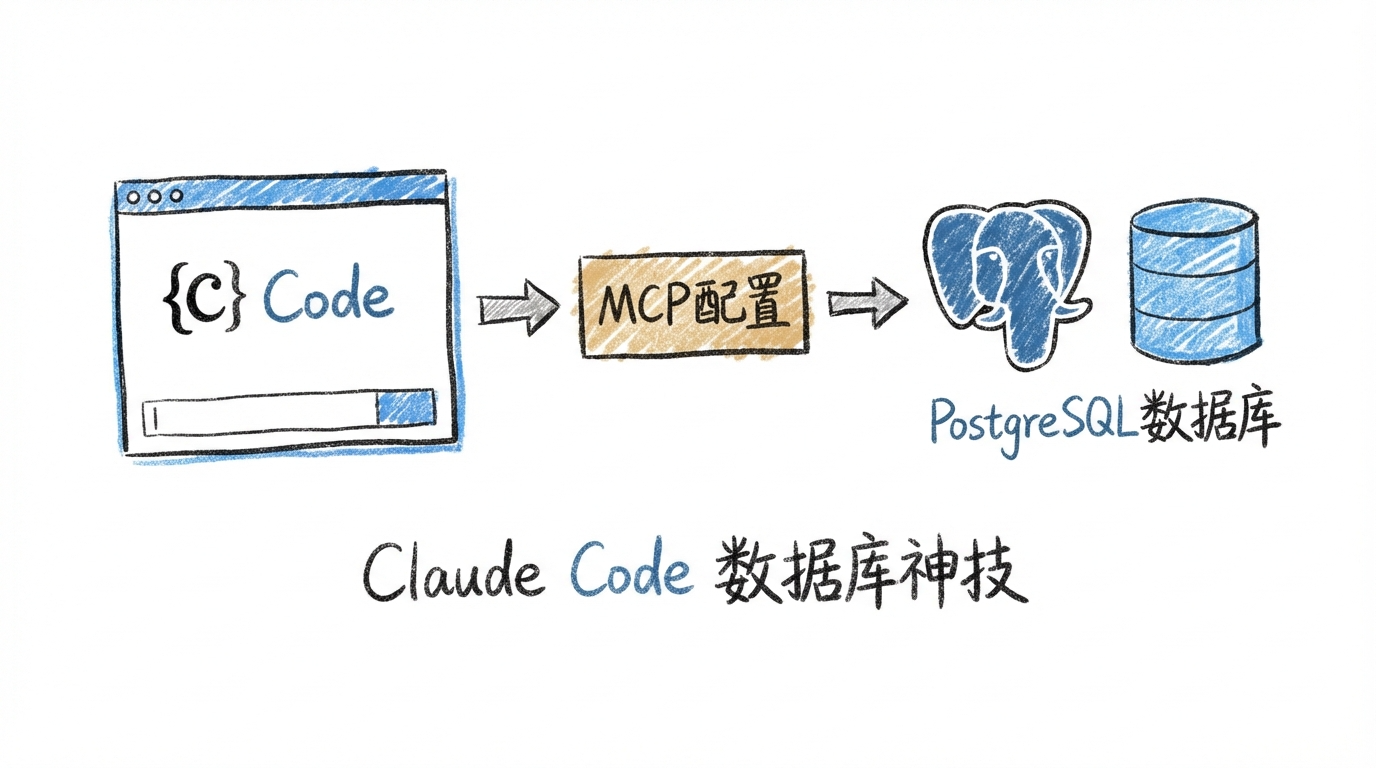
While working on my open-source IoT project recently, I encountered a tricky problem: I needed to frequently verify database structure and data states. I thought, “If only Claude Code could directly query the database, wouldn’t that make validating data structures much faster?”
I excitedly configured the PostgreSQL MCP, but when I ran claude mcp list, I saw ✗ Failed to connect. I retried N times, but still couldn’t connect. At that moment, my mood was like a database connection timeout—completely disconnected.
After some troubleshooting, I finally understood the correct approach to MCP configuration. This article shares these experiences to help you thoroughly understand Claude Code’s MCP configuration, especially the best practices for PostgreSQL database connections.
🔍 Root Cause: Why Does Configuration Always Fail?
In practice, MCP configuration failures usually have three main culprits:
1. Global Configuration File Syntax Errors
If Claude Code’s global configuration file C:\Users\admin\.claude\settings.json has a JSON syntax error (like an extra comma), it will cause the entire settings to load abnormally. You think you’ve configured it, but Claude Code never read it.
2. Project-Level MCP Not Authorized
When Claude Code first detects a project-level .mcp.json, it will show an authorization prompt:
New MCP server found in .mcp.json: postgres
1. Use this and all future MCP servers in this project
2. Skip for now
If you ever chose “Skip” or accidentally closed the window, this MCP will be permanently ignored until you manually reset it.
3. Hardcoded Database Connection Information
Many tutorials directly write database credentials in configuration files, which has two problems:
- Security risk: Configuration files might be accidentally committed to Git repositories
- Inflexible environments: Development and production environments usually have different connection information
💡 Best Practice: Project-Level MCP + Environment Variables
After practical verification, the best configuration approach for PostgreSQL MCP is: Project-level configuration + environment variable injection.
Why Choose Project-Level Configuration?
| Configuration Method | Pros | Cons | Use Case |
|---|---|---|---|
| Global Configuration | Configure once, works for all projects | Different projects may connect to different databases | Personal development environment, single project |
| Project-Level Configuration | Travels with repository, team members can reuse | Needs configuration in each project | Team collaboration, multiple projects in parallel |
Three Major Advantages of Project-Level Configuration:
- Business Isolation: Database connection is a strong business context configuration, different projects usually connect to different databases
- Team Reuse: Configuration travels with the repository, team members can reuse the same MCP definition after cloning the project
- Risk Isolation: Avoid global configuration accidentally connecting to other projects’ databases
🛠️ Practical Steps: Configure PostgreSQL MCP in 5 Minutes
Step 1: Create Project-Level Configuration File
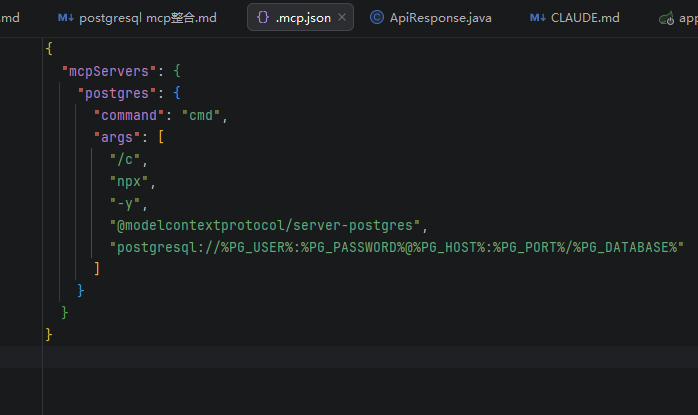
Create a .mcp.json file in the project root directory (e.g., F:\codes\open-iot):
{
  "mcpServers": {
    "postgres": {
      "command": "cmd",
      "args": [
        "/c",
        "npx",
        "-y",
        "@modelcontextprotocol/server-postgres",
        "postgresql://%PG_USER%:%PG_PASSWORD%@%PG_HOST%:%PG_PORT%/%PG_DATABASE%"
      ]
    }
  }
}
Key Points:
- Windows systems must use
cmd /c npx ...for better compatibility than directnpx - MCP name is
postgres, which can be viewed later via/mcpcommand - Connection information uses environment variable placeholders to avoid hardcoding
Step 2: Set Environment Variables
Set database connection information in PowerShell:
$env:PG_USER="openiot"
$env:PG_PASSWORD="openiot123"
$env:PG_HOST="localhost"
$env:PG_PORT="5432"
$env:PG_DATABASE="openiot"
Production Environment Recommendations:
- Use minimum privilege accounts, only grant necessary database operation permissions
- Configure environment variables in system environment variables or
.envfile (remember to add to.gitignore)
Step 3: Start Claude Code and Authorize
Start Claude Code in the project directory:
cd F:\codes\open-iot
claude
On first startup, you’ll see the authorization prompt:
New MCP server found in .mcp.json: postgres
1. Use this and all future MCP servers in this project
2. Skip for now
Choose option 1, so all MCP configurations in the current project will be trusted.
Step 4: Verify Configuration Success
Run the verification command:
claude mcp list
Seeing the following output means success:
postgres ... ✓ Connected
Now you can use PostgreSQL queries directly in Claude Code!
🔧 Troubleshooting: What If It Still Won’t Connect?
Scenario 1: Previously Chose “Skip”, Now Want to Enable
Reset project MCP authorization:
claude mcp reset-project-choices
Then restart Claude Code, and the authorization prompt will appear again.
Scenario 2: Global Configuration File Syntax Error
Check the global configuration file:
code C:\Users\admin\.claude\settings.json
Common syntax errors:
- Extra commas (no comma after the last item)
- Missing quotes
- Mismatched brackets
Fix and restart Claude Code.
Scenario 3: Want to Use Global Configuration Instead
If you really need global configuration (all projects connect to the same local database), you can run:
claude mcp add -s user postgres -- cmd /c npx -y @modelcontextprotocol/server-postgres postgresql://%PG_USER%:%PG_PASSWORD%@%PG_HOST%:%PG_PORT%/%PG_DATABASE%
Note: If project-level and global servers with the same name coexist, it’s recommended to keep only one to avoid confusion.
🎯 Practical Effects: What Can MCP Do?
After successful configuration, you can execute database operations directly in Claude Code:
Example 1: Query Table Structure
You: Query all fields in the users table
Claude: [Executes MCP tool call] The users table contains the following fields:
- id (bigint, primary key)
- username (varchar(50))
- email (varchar(100))
- created_at (timestamp)
Example 2: Quick Data Verification
You: Check the last 10 device data reports
Claude: [Executes query] The last 10 records are as follows...
Example 3: Generate Migration Script
You: Add a status field to the sensor_data table
Claude: [Queries existing structure] Migration script generated...
📌 Key Takeaways
- Prefer project-level configuration: Better business isolation, easier team collaboration
- Inject connection info via environment variables: Avoid hardcoding, improve security
- Use
cmd /c npxon Windows: Best compatibility - Must authorize on first startup: Choose “Use this and all future MCP servers”
- Check global config file first when troubleshooting: JSON syntax errors are common culprits
🚀 Advanced Thinking: The True Value of MCP
PostgreSQL MCP is just the tip of the iceberg. Claude Code’s MCP ecosystem is developing rapidly, and in the future you might use:
- File System MCP: Cross-project file search
- GitHub MCP: Direct repository and PR operations
- Browser MCP: Automated web interactions
- Custom MCP: Encapsulate team internal tools
The essence of MCP is to extend AI’s capability boundaries, evolving Claude Code from a “code assistant” to a “full-stack development partner”.
When you get used to MCP’s existence, you’ll discover: AI-assisted development can be so natural and efficient.